Antivirus - Cleaner + VPN
- 4.7
- Rating
- 10.00M
- Installs
- Free
- Price

 Analysis by App-foxy
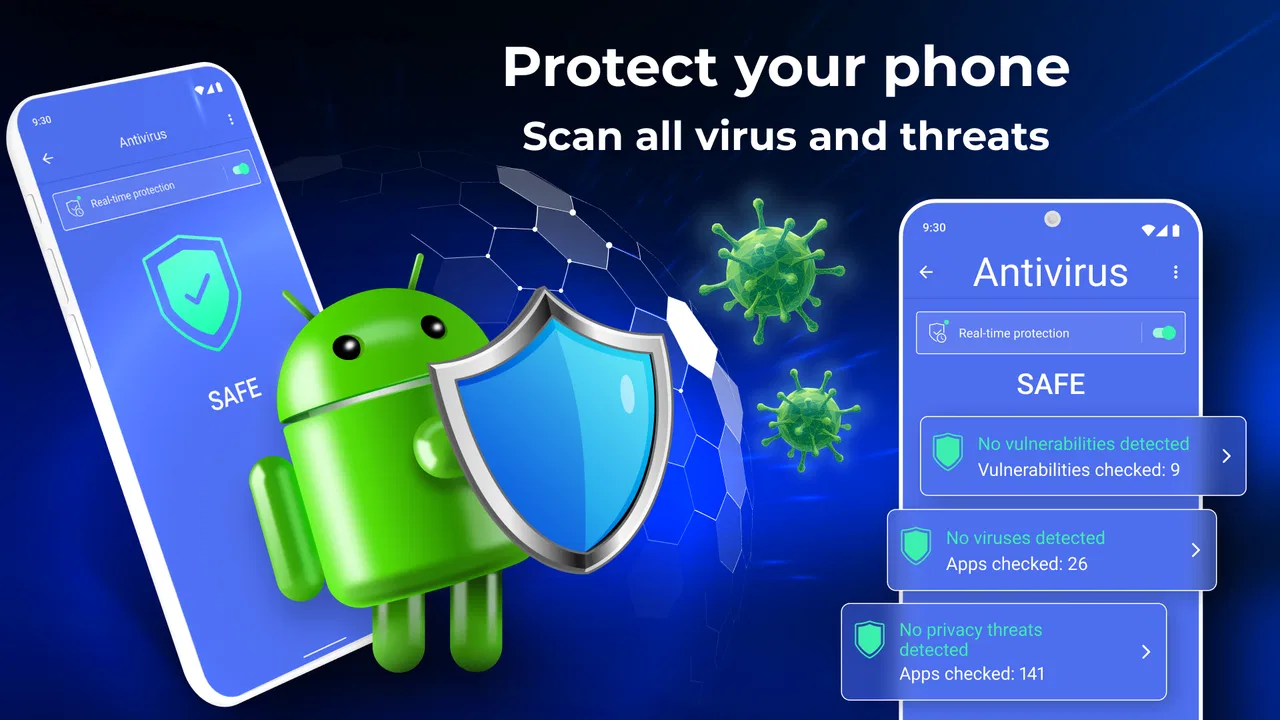
I approached Antivirus - Cleaner + VPN as a practical Android security tool rather than a magic fix for every phone problem. It combines antivirus and virus-protection tools with cleaning, security features, a VPN, and file management in one app. That broad scope is useful when I want one place to check a device, but it also means the best experience depends on understanding which tool to use and when.
Developed by TarrySoft, this free app sits in the Tools category and is suitable for Everyone. It has reached more than ten million installs, with a 4.7 average from roughly 295 thousand ratings and about ten thousand written reviews. Those figures suggest that the basic concept works for a large audience, although popularity alone does not remove the need to check what the app is actually doing on your device.
My main impression is that it is most helpful for people who want a straightforward safety routine: check suspicious files, remove unnecessary clutter, browse with an extra privacy layer, and manage files without jumping between several utilities. It is less convincing for someone who already has a carefully configured security setup or expects a cleaner to solve storage problems caused by large photos, videos, or application data automatically.
You May Also Like

 Blood Strike: 2.5 Anniversary
Blood Strike’s Loadouts Turn Every Drop Into a Tactical Gamble
A close look at Blood Strike’s custom loadouts: how fast access to signature weapons reshapes its battle royale rhythm, rewards preparation, and narrows the gap between fights.

 Pandora - Music & Podcasts
Pandora’s Music Is Easy to Start, but Harder to Recover
Pandora’s strength is its low-effort path from a seed to a station. Its weak spot is how much confidence it asks you to place in connection, setup, and quiet recovery.

 8 Ball Pool
 Is Built on Rivalries, Rematches, and Routine
A close look at the rivalries, rematches, shared routines, and unanswered safety questions that turn a quick pool match into a persistent mobile community.

 Samsung Music
’s Quiet Strength Is Playing What You Already Own
Its reach comes less from spectacle than from dependable access to a personal library. That simplicity is both the app’s strongest retention engine and its ceiling.

 AccuWeather: Weather Radar
AccuWeather Review: A Quick, Clear Forecast for Everyday Decisions
For everyday plans, the best forecast is the one you can understand quickly. AccuWeather makes rain timing, radar, and local conditions easy to act on, with a few trade-offs.

 Hill Climb Racing
Why Hill Climb Racing Still Turns Crashes Into One More Run
A tiny car, a bumpy hill and one more upgrade: Hill Climb Racing keeps resurfacing because its simple chaos makes every near-miss feel personal.
More From Our News Desk



Where the experience usually gets stuck
I find the experience can get confusing when a screen presents several maintenance jobs close together, especially for someone who reads slowly or is new to security tools. In this section, I focus on how to tell what each action is meant to do before tapping it, so the next part can make the first visit easier to navigate.
One app, several different jobs
The first point of friction is conceptual. Antivirus scanning, file cleaning, VPN use, and file management are related, but they are not interchangeable. A scan looks for security risks. Cleaning focuses on unwanted or unnecessary material. A VPN changes how network traffic is routed. The file manager helps you inspect and organize content. If I open the app expecting one large button to solve all four problems, the results can feel less clear than they should.
I get better results by treating each area as a separate task. I use the security side when an installed application or downloaded file seems questionable. I use cleaning when storage is becoming uncomfortable. I consider the VPN when I want an additional privacy layer on an unfamiliar network. I use file management when I need to find the actual item taking up space instead of relying on an automatic recommendation.
This distinction also prevents a common mistake: deleting files simply because they are old or unfamiliar. A cleaner may identify material that appears disposable, but I still review anything connected to work, travel, authentication, messaging, or offline access. The safest workflow is to inspect suggestions in small groups rather than approving every cleanup category at once.
Why a scan may appear less useful than expected
A security scan is most valuable when I have a reason to investigate: a recently installed app from an uncertain source, unusual pop-ups, unexpected redirects, or a file that behaves differently from its description. Running scans repeatedly without changing anything can provide reassurance, but it does not replace sensible installation habits or system updates.
If a scan seems to pause, I first leave the app open long enough to complete its current work and make sure the phone is not aggressively restricting background activity. I also check whether the device is nearly full, because low storage can affect many operations at once. These are simple checks, but they are more useful than immediately assuming the antivirus engine has failed.
Another practical point is that a security tool cannot make every suspicious-looking item dangerous. An unfamiliar file name, a large cache, or an application that uses noticeable storage is not automatically malware. I treat the result as a prompt to investigate, not as permission to remove something blindly. That habit is especially important on a phone used for banking, work documents, or two-factor authentication.
The cleaner is not a complete storage strategy
Cleaning tools are attractive because they promise an immediate sense of order. In my experience, the real benefit comes from using the cleaner as a starting point. After it identifies removable material, I switch to the file manager to understand what remains. Large videos, duplicate downloads, offline maps, and messaging media often need a deliberate decision rather than a one-tap cleanup.
This is one of the less obvious trade-offs of an all-in-one utility. The convenience is having discovery and management close together; the compromise is that automated recommendations may not understand the personal value of a file. I prefer a two-stage routine: let the cleaner highlight candidates, then confirm important folders manually. That approach takes longer, but it reduces the chance of removing something I expected to keep.
Setup checks that make the first session smoother
A smoother first session starts with choosing one task and checking that the phone is ready for it, rather than trying every tool at once. I also consider how screen readability, touch precision, and comfort with security terminology can affect setup; the following section offers practical checks without assuming every user interacts with Android in the same way.
Start with the device, not the promotional promise
The app runs on Android six point zero and later, so compatibility is broad enough for many older devices as well as newer ones. Before I begin, I make sure the phone has enough free space for normal operation and that the operating system is not in the middle of an update. I also close unusually demanding tasks if the phone is already hot or sluggish. This does not add features, but it gives the app a fair environment in which to work.
I then decide what I actually want from the first session. If my concern is a suspicious download, I begin with security. If the phone is warning about storage, I begin with cleaning and follow up in the file manager. If I am connected to public Wi-Fi, I evaluate the VPN separately instead of assuming that turning it on improves every part of the device.
Handle permissions with attention
Tools that scan files or organize storage naturally need access related to those tasks. I read each permission request in context and avoid granting anything that does not match the action I am trying to perform. If I only want to inspect a downloaded file, I do not rush through every setup screen as if all access were equally necessary.
This careful approach also makes troubleshooting easier. When a feature cannot see a folder or complete an action, I know which access choice may be relevant. If I approve everything without reading, a later problem becomes harder to diagnose because I no longer know what the app is allowed to do.
Understand the free model before relying on every tool
The app is free to install, but it includes in-app purchases ranging from $0.99 to $99.99 per item. I would therefore check the screen carefully before confirming any optional upgrade or recurring-looking offer. The free entry point is useful for trying the core workflow, but I would not assume that every security, cleaning, or privacy function has identical access without reading the current screen.
This matters most when I am recommending the app to someone who wants a completely cost-free utility. The right expectation is not “everything is unlimited because the download is free.” Instead, I would test the functions I need, note which ones are available without payment, and decide whether the additional purchase is worthwhile for my own routine.
Keep the VPN decision separate
A VPN can be useful in specific situations, but it is not a universal substitute for safe browsing, strong account passwords, or device updates. I use it as an additional network privacy measure, especially when I am deciding whether I want extra protection on a network I do not control. I do not treat it as proof that a website is trustworthy or that downloaded files are safe.
There is also a practical trade-off: routing traffic through a VPN can change how some services behave. If a website, streaming service, login page, or local network tool suddenly acts differently, I test the connection without the VPN before blaming the phone or the app. That simple comparison often identifies whether the network route is involved.
Recovering a workflow when something goes wrong
When a task stalls or produces an unexpected result, I find it helps to pause and identify whether the issue concerns scanning, storage, or the network before changing settings. The next section looks at ways to resume deliberately, with small comparisons that help avoid unnecessary cleanup or repeated actions.
When a scan does not finish
I recover from an incomplete scan in a controlled order. First, I return to the main screen and check whether the scan is genuinely still active or merely waiting for another action. Next, I close unrelated applications, confirm that the phone is not extremely low on storage, and try again. If the issue appears only when the phone is locked, I keep the screen active during the next attempt so I can see whether the behavior changes.
I also avoid launching a cleaner and a scan at the same time. Both tasks may inspect a large number of files, and overlapping them makes it harder to tell which operation is responsible for slow performance. Running one task at a time gives me a clearer result and makes the phone easier to use during the process.
When cleanup does not free much space
A small cleanup result does not necessarily mean the tool is ineffective. It may simply mean that temporary material is not the main source of storage pressure. I open the file manager and look for personal media, old downloads, and offline content. Those categories often require a decision about what to archive, transfer, or delete, and an automatic cleaner should not make that decision for me.
For a realistic everyday example, imagine I am preparing for a trip and my phone says storage is nearly full. I would use the cleaner to identify easy removals, then inspect downloaded tickets, map data, camera videos, and messaging attachments manually. I would keep anything needed offline, move personal media elsewhere when appropriate, and only then repeat the storage check. The app helps me locate the problem, but the final organization still depends on my choices.
When the VPN changes an app’s behavior
If a page will not load after I enable the VPN, I first switch the VPN off briefly and retry the same page. If the page works normally without it, I know the connection path is part of the problem. I then decide whether that particular service is more important than using the VPN at that moment. This is a better response than repeatedly clearing unrelated files or running an antivirus scan for a network-routing issue.
I also avoid judging the VPN by a single website. A local service, workplace system, or account login may behave differently from ordinary browsing. The useful question is whether the VPN supports the specific activity I need, not whether it makes every connection identical.
When a file cannot be found after cleanup
If I cannot locate a file, I use the file manager’s categories and folders rather than assuming it was deleted. Downloads, documents, images, and application-created folders do not always follow the same naming pattern. I check the location where the file was originally saved, then review recent cleanup actions before taking further steps.
This is another reason I prefer reviewing cleanup suggestions individually. When I know what I approved, I can retrace the workflow. If I use a single broad confirmation without reading, recovery becomes more uncertain and I may waste time searching for a file that was intentionally removed.
When the app is not the cause
Security utilities are often blamed for problems that originate elsewhere. A slow phone may be caused by an aging battery, limited system resources, a demanding application, or a nearly full storage drive. A weak connection may come from the router or mobile network. A pop-up may be tied to a particular application or browser setting rather than the antivirus tool.
I separate these possibilities by testing one variable at a time. I compare the phone before and after enabling the VPN. I check whether the problem happens only inside one application. I look at available storage before and after cleanup. I restart the device when a temporary system process may be involved. These basic comparisons are more reliable than repeatedly pressing scan or clean and hoping for a different result.
I would also skip this app if I want a narrowly focused solution with no extra sections to navigate. Someone who already uses a trusted security product, a dedicated file manager, and a separate VPN may prefer keeping those tools independent. Separate applications can be easier to replace one at a time and may provide a more specialized experience, even though they require more setup.
On the other hand, I see a good fit for people who are uncomfortable managing several utilities. The combined design gives beginners a single place to start, and the Everyone age rating makes it approachable for a broad household audience. I would still teach a new user not to delete every suggested file or assume that a VPN makes risky websites safe.
Privacy-conscious users should make their own decision after reading the app’s current screens and permissions. The presence of a VPN and security tools does not automatically make an all-in-one application the best choice for someone who wants the smallest possible software footprint. For that audience, a dedicated, carefully evaluated tool may be preferable.
My practical verdict after using its full range
Antivirus - Cleaner + VPN works best as a guided maintenance hub. Its strongest idea is convenience: I can move from a security check to storage inspection, then use the file manager to make a more informed decision. That sequence is more useful than treating the app as a one-tap repair button. The VPN adds another practical option, but I keep its network role separate from antivirus and cleaning tasks.
The app’s current version is 2.3.0, and its established presence on Android is reflected in its large install base and strong average rating. Still, those signals should support, not replace, personal testing. I would install it for a family member who wants a simple starting point for checking files and tidying a phone, especially if they do not already have equivalent tools.
I would not choose it for someone who wants highly specialized controls, a completely free experience across every available function, or an automatic answer to large personal-media collections. The most important limitation is not that the app combines several jobs; it is that combining them can encourage users to confuse a scan with a cleanup, or a VPN with complete online safety.
My recommended routine is simple: run security checks when there is a genuine reason, review cleaning suggestions instead of approving them blindly, use the file manager to understand what is consuming storage, and test VPN behavior against the specific network activity you care about. With that discipline, this free Tools app from TarrySoft becomes a sensible, approachable companion for everyday Android maintenance rather than an overpromising cure-all.
FAQs for Antivirus - Cleaner + VPN
01What features does Antivirus - Cleaner + VPN offer?
Antivirus - Cleaner + VPN provides comprehensive protection by combining antivirus scanning, device cleaning, and VPN services. The antivirus feature scans for malware and viruses, ensuring your device remains secure. The cleaner optimizes device performance by removing junk files, while the VPN offers anonymous browsing and enhanced privacy. This all-in-one solution is perfect for maintaining security and performance.
02How does the VPN feature enhance my privacy?
The VPN feature in Antivirus - Cleaner + VPN encrypts your internet connection, allowing you to browse anonymously. It masks your IP address, making it difficult for third parties to track your online activities. This is crucial for maintaining privacy, especially when using public Wi-Fi networks. The VPN also allows access to geo-restricted content, expanding your browsing options.
03Is Antivirus - Cleaner + VPN compatible with all devices?
Antivirus - Cleaner + VPN is compatible with a wide range of Android and iOS devices. Before downloading, check the app store specifications to ensure your device meets the minimum requirements. Regular updates are provided to maintain compatibility with new operating systems and devices, ensuring continued protection and functionality.
04Does the app significantly impact device performance?
Antivirus - Cleaner + VPN is designed to run efficiently in the background without significantly impacting device performance. While the cleaner optimizes your device by freeing up storage and resources, the VPN and antivirus functions are optimized to minimize battery and processor usage. Users generally report enhanced device speed and improved battery life after installation.
05Are there any subscription costs or hidden fees?
Antivirus - Cleaner + VPN offers both free and premium versions. The free version provides basic protection and cleaning, while the premium version unlocks advanced features, including faster VPN servers and real-time antivirus scanning. Ensure you review the app store details to understand the subscription plans and decide which version best suits your needs.
Pros
- Comprehensive virus protection.
- Integrated VPN for secure browsing.
- User-friendly interface.
- Regular updates for latest threats.
- Cleans junk files efficiently.
Cons
- Free version has limited features.
- VPN can slow down internet speed.
- Occasional intrusive ads.
- High battery consumption.
- Some features are paywalled.

Antivirus - Cleaner + VPN
Gallery